<inputs>
Ask me for: my featured Pokémon or starter trio, 8–12 Pokémon-themed UI states, and a royalty-free song around 120 BPM with a playful adventure or electronic feel. Confirm that the song’s license permits the intended use.Default palette: warm off-white, black, and Poké Ball red. Pokémon artwork keeps its original colors.
</inputs>

<direction>
A Pokémon-inspired UI motion film with Dribbble-level polish. Imagine a beautifully designed modern Pokédex: playful, precise, and instantly http://recognizable.One shape, never cut: a Poké Ball continuously morphs into every interface component by changing its size, radius, and color. Its central button, dividing line, and outer shell become the controls and structure of each new state. Content swaps with a short blur and carefully separated enter/exit timing.

A visible cursor drives every interaction with clicks, drags, and hover gestures. Use a light warm-gray canvas, clean Geist typography, consistent icon strokes, and crisp Pokémon artwork.

Use tightly damped springs with only a tiny overshoot. The camera smoothly reframes each state so the interface stays large and readable. The ending returns exactly to the opening Poké Ball for a seamless loop.

Banned: excessive bouncing, particle bursts, glows, gradients on UI chrome, mismatched icon strokes, dead time, generic dashboard layouts, abrupt scene changes, and unrelated floating elements.
</direction>

<structure>
120 BPM, 4/4 time, 7 bars: 28 beats, approximately 14 seconds. Something intentional happens on every http://beat.Bar 1 — Poké Ball activation

1. A closed Poké Ball sits centered; the cursor approaches.
2. The cursor clicks its central button.
3. The button becomes a circular scanning loader.
4. The scan resolves into a check, and the shell stretches into a compact Pokédex.

Bar 2 — Pokémon discovery
5. The Pokédex expands to reveal the featured Pokémon.
6. Its name, number, and type appear in a quick stagger.
7. The cursor clicks the cry/play control.
8. The control morphs into pause while a compact waveform animates.

Bar 3 — Trainer controls
9. The waveform flattens into a volume slider.
10. The cursor drags its Poké Ball-shaped knob to maximum.
11. Dragging beyond maximum elastically stretches the slider.
12. On release, it settles and compresses into a shiny-mode toggle.

Bar 4 — Pokémon details
13. The cursor flips shiny mode; the artwork changes to the correct shiny variant.
14. The toggle knob stretches into a liquid tab indicator.
15. The cursor selects “Stats.”
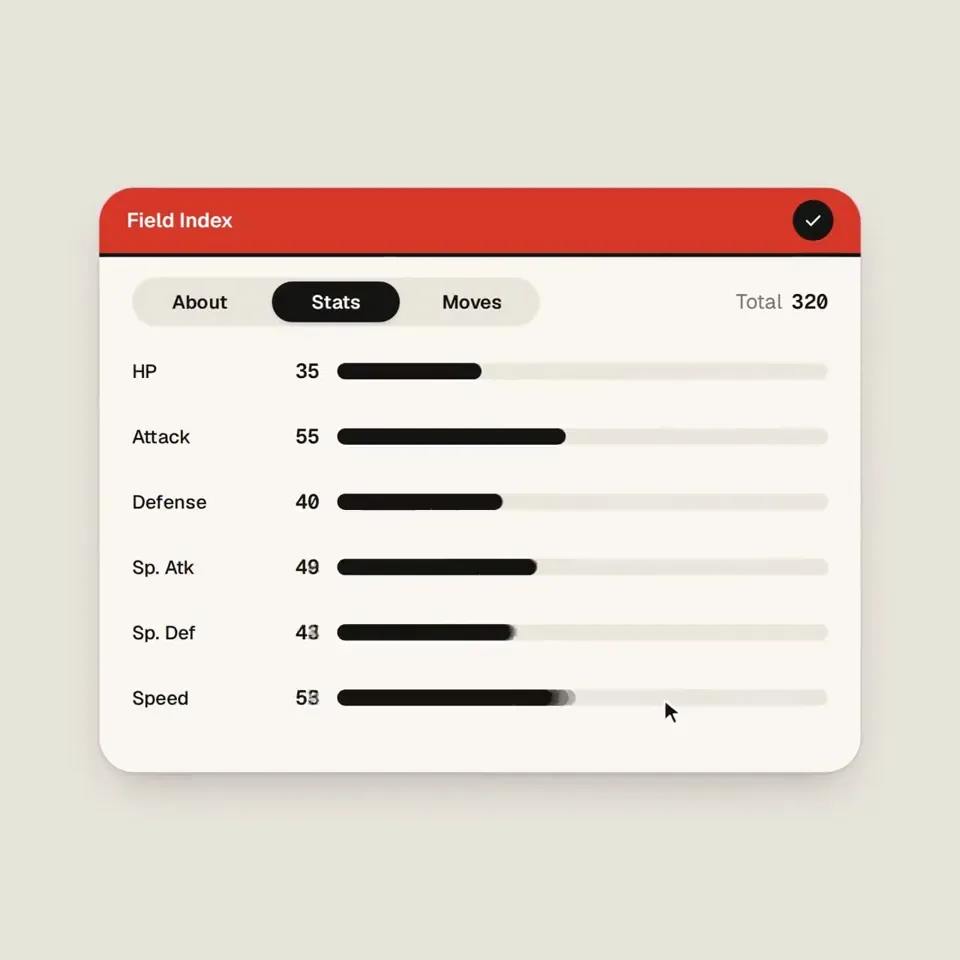
16. The card opens into a clean Pokémon stat chart.

Bar 5 — Stats to search
17. Stat bars draw themselves in sync with the beat.
18. The cursor hovers over a bar; a readable tooltip appears.
19. The chart retracts into the same container.
20. The container compresses into a Pokédex search field.

Bar 6 — Find and select
21. The search field expands into a command palette.
22. A short Pokémon name is typed; matching results filter.
23. The cursor selects a result, revealing its miniature artwork and type.
24. Enter confirms; the palette folds into an “Added to team” toast.

Bar 7 — Return to the Poké Ball
25. The toast’s confirmation mark becomes the Poké Ball’s central button.
26. The toast contracts; its edges become the circular shell.
27. The red upper half, white lower half, and black dividing line settle into place.
28. The cursor returns along a smooth path, matching the opening position and velocity as the loop wraps.

Use the chosen Pokémon consistently throughout. Keep visible text brief enough to read at this pace.
</structure>

<build>
1. Build one self-contained HTML file with a square 1440×1440 composition. Compute every animated style from time inside seek(t): no CSS transitions, timers, or state carried between frames.
2. Keep one persistent outer element throughout the sequence. Its internal artwork, labels, and controls may change, but the main silhouette must visibly connect every state.
3. Use closed-form spring step responses. For repeated target changes, sum one spring response per change so animation remains a pure function of time.
4. Give the tab indicator’s two edges different springs so the leading edge stretches ahead of the trailing edge. Apply the same technique to the toggle knob.
5. Make drags direct manipulation: while held, values follow cursor position. On release, use a closed-form spring matching the release position and velocity.
6. Analyze the supplied song with numpy to estimate the beat grid, verify the downbeat, and align the sequence. If the tempo differs from 120 BPM, adapt the timing to the actual music.
7. Use licensed UI sounds and align their measured transient peaks with clicks, confirmations, and morph accents.
8. Render with Playwright at four subframes per output frame. Blend each group of four with ffmpeg into a 60fps video for motion blur.
9. Render one preview frame per beat before the full video. Fix anything cramped, unreadable, visually disconnected, or off the beat grid.
10. Package artwork and fonts inside the HTML so rendering does not depend on network requests.
</build><gotchas>
Never put will-change on anything the camera scales; text can become blurry.Give outgoing and incoming content separate timing so labels never overlap during a morph.

Use accurate Pokémon artwork, names, types, shiny colors, and stats. Do not invent variants or stretch character artwork when the container changes shape.

Keep the main container recognizable through every transition. Pokémon artwork is content inside the morphing interface, not a replacement for the persistent shape.

Match the loop boundary exactly: geometry, content, camera, cursor position, and cursor velocity. Export the interval [0, duration) without duplicating the endpoint frame. Make the audio loop cleanly too.
</gotchas>

<start>
Ask me for the inputs, then show me the proposed Pokémon state list on the 28-beat grid before writing any code.
</start>
한국어 번역
<inputs>
나에게 다음을 물어보세요: 내가 고른 대표 포켓몬 또는 스타터 트리오, 8–12개의 포켓몬 테마 UI 상태, 그리고 유쾌한 어드벤처 또는 일렉트로닉 느낌의 120 BPM 전후 로열티 프리 곡. 곡의 라이선스가 의도된 사용을 허용하는지 확인하세요. 기본 팔레트: 따뜻한 오프화이트, 블랙, 포켓볼 레드. 포켓몬 아트워크는 원래 색상을 유지합니다.
</inputs>

<direction>
Dribbble 수준의 완성도를 지닌, 포켓몬에서 영감을 받은 UI 모션 필름. 아름답게 디자인된 현대적인 도감을 상상해 보세요: 유쾌하고 정밀하며 즉시 http://recognizable. 하나의 도형, 결코 끊지 않기: 포켓볼이 크기, 반경, 색상을 바꾸며 모든 인터페이스 컴포넌트로 끊임없이 모핑합니다. 중앙 버튼, 분할선, 외곽 셸이 각각의 새 상태에서 컨트롤과 구조가 됩니다. 콘텐츠는 짧은 블러와 세심하게 분리된 등장/퇴장 타이밍으로 교체됩니다.

보이는 커서가 클릭, 드래그, 호버 제스처로 모든 인터랙션을 이끕니다. 밝은 웜 그레이 캔버스, 깔끔한 Geist 타이포그래피, 일관된 아이콘 스트로크, 선명한 포켓몬 아트워크를 사용하세요.

아주 약간의 오버슈트만 있는 강하게 감쇠된 스프링을 사용하세요. 카메라가 각 상태를 부드럽게 리프레이밍해 인터페이스가 크고 읽기 좋게 유지됩니다. 엔딩은 매끄러운 루프를 위해 오프닝의 포켓볼로 정확히 돌아갑니다.

금지: 과도한 바운싱, 파티클 버스트, 글로우, UI 크롬의 그라디언트, 서로 맞지 않는 아이콘 스트로크, 죽은 시간, 일반적인 대시보드 레이아웃, 갑작스러운 장면 전환, 무관한 부유 요소.
</direction>

<structure>
120 BPM, 4/4 박자, 7마디: 28비트, 약 14초. 모든 http://beat.에 의도적인 일이 일어납니다. 마디 1 — 포켓볼 활성화

1. 닫힌 포켓볼이 중앙에 놓여 있고, 커서가 다가옵니다.
2. 커서가 중앙 버튼을 클릭합니다.
3. 버튼이 원형 스캐닝 로더가 됩니다.
4. 스캔이 체크로 마무리되고, 셸이 늘어나 콤팩트한 도감이 됩니다.

마디 2 — 포켓몬 발견
5. 도감이 확장되어 대표 포켓몬을 드러냅니다.
6. 이름, 번호, 타입이 빠른 스태거로 나타납니다.
7. 커서가 울음소리/재생 컨트롤을 클릭합니다.
8. 컨트롤이 일시정지로 모핑되는 동안 콤팩트한 파형이 애니메이션됩니다.

마디 3 — 트레이너 컨트롤
9. 파형이 납작해져 볼륨 슬라이더가 됩니다.
10. 커서가 포켓볼 모양 노브를 최대치까지 드래그합니다.
11. 최대치를 넘겨 드래그하면 슬라이더가 탄성적으로 늘어납니다.
12. 놓으면 안정되며 압축되어 이로치 모드 토글이 됩니다.

마디 4 — 포켓몬 상세
13. 커서가 이로치 모드를 전환하고, 아트워크가 올바른 이로치 변종으로 바뀝니다.
14. 토글 노브가 늘어나 리퀴드 탭 인디케이터가 됩니다.
15. 커서가 “Stats”를 선택합니다.
16. 카드가 열리며 깔끔한 포켓몬 스탯 차트가 됩니다.

마디 5 — 스탯에서 검색으로
17. 스탯 바가 비트에 맞춰 스스로 그려집니다.
18. 커서가 한 바 위에 호버하면 읽기 좋은 툴팁이 나타납니다.
19. 차트가 같은 컨테이너로 다시 접힙니다.
20. 컨테이너가 압축되어 도감 검색 필드가 됩니다.

마디 6 — 찾고 선택하기
21. 검색 필드가 확장되어 커맨드 팔레트가 됩니다.
22. 짧은 포켓몬 이름이 입력되고, 일치하는 결과가 필터링됩니다.
23. 커서가 결과를 선택해 그 미니어처 아트워크와 타입이 드러납니다.
24. Enter로 확인하면 팔레트가 접히며 “Added to team” 토스트가 됩니다.

마디 7 — 포켓볼로 돌아가기
25. 토스트의 확인 표시가 포켓볼의 중앙 버튼이 됩니다.
26. 토스트가 수축하고, 그 가장자리가 원형 셸이 됩니다.
27. 빨간 위쪽 절반, 흰색 아래쪽 절반, 검은 분할선이 제자리에 자리 잡습니다.
28. 커서가 매끄러운 경로를 따라 돌아오며, 루프가 이어질 때 오프닝의 위치와 속도에 일치합니다.

선택한 포켓몬을 전체에 일관되게 사용하세요. 화면에 보이는 텍스트는 이 속도에서 읽을 수 있을 만큼 짧게 유지하세요.
</structure>

<build>
1. 정사각형 1440×1440 컴포지션의 자체 완결형 HTML 파일 하나를 만드세요. 모든 애니메이션 스타일을 seek(t) 내부에서 시간으로부터 계산하세요: CSS 트랜지션, 타이머, 프레임 간에 이어지는 상태는 없습니다.
2. 시퀀스 전반에 하나의 지속적인 외곽 요소를 유지하세요. 내부 아트워크, 라벨, 컨트롤은 바뀔 수 있지만, 주 실루엣이 모든 상태를 눈에 보이게 연결해야 합니다.
3. 닫힌 형식의 스프링 스텝 응답을 사용하세요. 목표가 반복적으로 바뀌는 경우 변화마다 스프링 응답 하나를 합산해 애니메이션이 시간의 순수 함수로 유지되게 하세요.
4. 탭 인디케이터의 양쪽 가장자리에 서로 다른 스프링을 주어 앞쪽 가장자리가 뒤쪽 가장자리보다 앞서 늘어나게 하세요. 토글 노브에도 같은 기법을 적용하세요.
5. 드래그를 직접 조작으로 만드세요: 누르고 있는 동안 값은 커서 위치를 따릅니다. 놓을 때는 놓은 위치와 속도에 맞는 닫힌 형식 스프링을 사용하세요.
6. numpy로 제공된 곡을 분석해 비트 그리드를 추정하고, 다운비트를 검증하고, 시퀀스를 정렬하세요. 템포가 120 BPM과 다르면 실제 음악에 맞춰 타이밍을 조정하세요.
7. 라이선스가 있는 UI 사운드를 사용하고, 측정된 트랜지언트 피크를 클릭, 확인, 모프 액센트에 맞추세요.
8. Playwright로 출력 프레임당 네 개의 서브프레임으로 렌더링하세요. 네 개씩 묶음마다 ffmpeg로 블렌딩해 60fps 영상으로 만들고 모션 블러를 얻으세요.
9. 전체 영상 전에 비트당 한 장의 프리뷰 프레임을 렌더링하세요. 답답하거나, 읽을 수 없거나, 시각적으로 분리되어 보이거나, 비트 그리드에서 벗어난 부분을 고치세요.
10. 아트워크와 폰트를 HTML 안에 패키징해 렌더링이 네트워크 요청에 의존하지 않게 하세요.
</build><gotchas>
카메라가 스케일하는 어떤 것에도 will-change를 넣지 마세요. 텍스트가 흐려질 수 있습니다. 나가는 콘텐츠와 들어오는 콘텐츠에 별도의 타이밍을 주어 모프 중에 라벨이 절대 겹치지 않게 하세요.

정확한 포켓몬 아트워크, 이름, 타입, 이로치 색상, 스탯을 사용하세요. 변종을 지어내지 말고, 컨테이너 모양이 바뀔 때 캐릭터 아트워크를 늘리지 마세요.

모든 전환에서 메인 컨테이너를 알아볼 수 있게 유지하세요. 포켓몬 아트워크는 모핑하는 인터페이스 내부의 콘텐츠이며, 지속적인 도형을 대체하는 것이 아닙니다.

루프 경계를 정확히 일치시키세요: 지오메트리, 콘텐츠, 카메라, 커서 위치, 커서 속도. 엔드포인트 프레임을 중복하지 않고 구간 [0, duration)을 내보내세요. 오디오도 깔끔하게 루프되게 하세요.
</gotchas>

<start>
나에게 입력값을 물어본 뒤, 코드를 작성하기 전에 28비트 그리드상의 제안 포켓몬 상태 목록을 보여주세요.
</start>